
Create invitations with AI, templates, or by hand
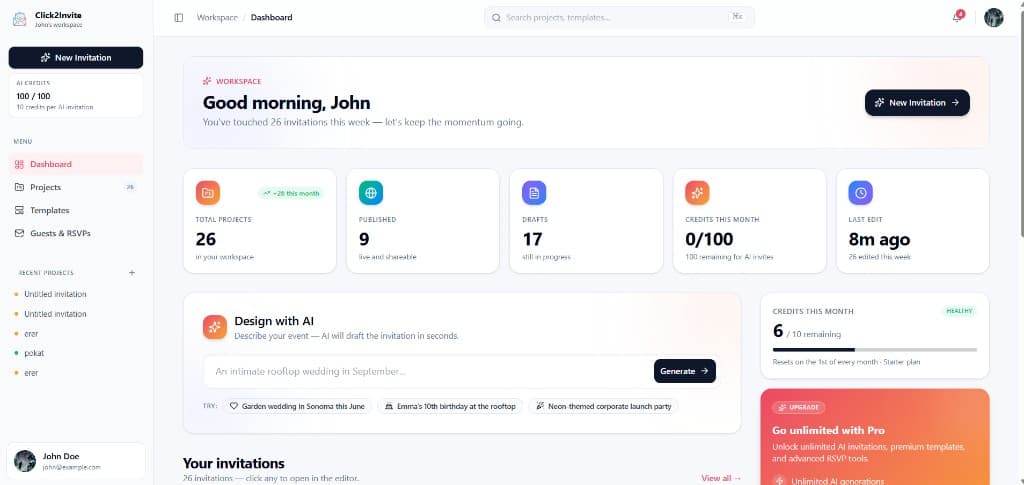
This guide walks through every path: generating with AI, starting from a published template, and editing manually in the playground. Screenshots below show the editor, templates, settings, and workspace dashboard in context.
Describe your event
Tell us what you're celebrating — a wedding, birthday, or any special occasion. Add details or keep it simple.
Let AI design it
Our AI generates a unique, beautiful invitation tailored to your event. Tweak it with drag-and-drop if you want.
Share & track RSVPs
Send via link, WhatsApp, or email. Watch responses roll in on your dashboard in real time.
Path 1 — Design with AI
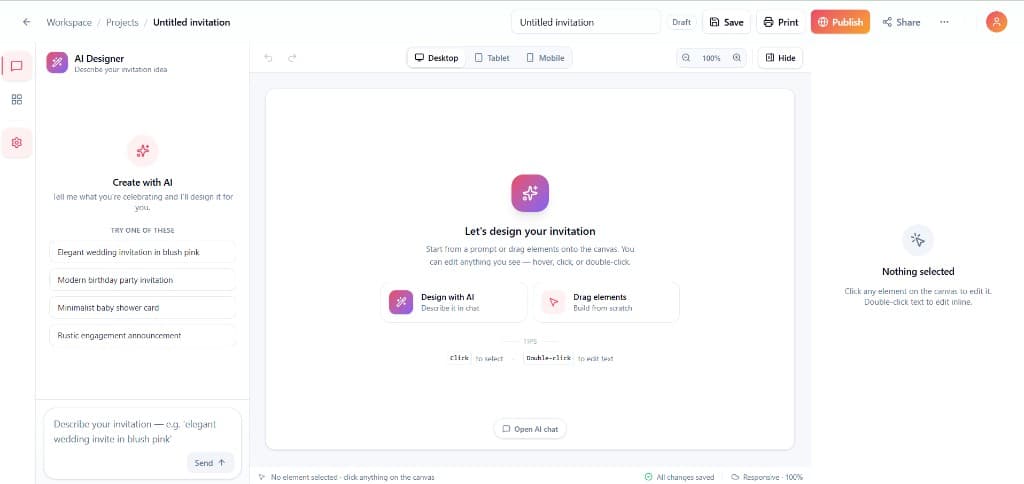
Best when you want a full layout fast: describe the event, mood, and guests; the assistant streams HTML into the playground canvas. You stay in control — nothing is published until you save and choose to share.
- Sign in as a customer and open a new playground project (from the workspace or “Get started”).
- Write a prompt in the AI panel: occasion, date, tone, colors, language, anything guests should see. Send the message and wait for the streamed design.
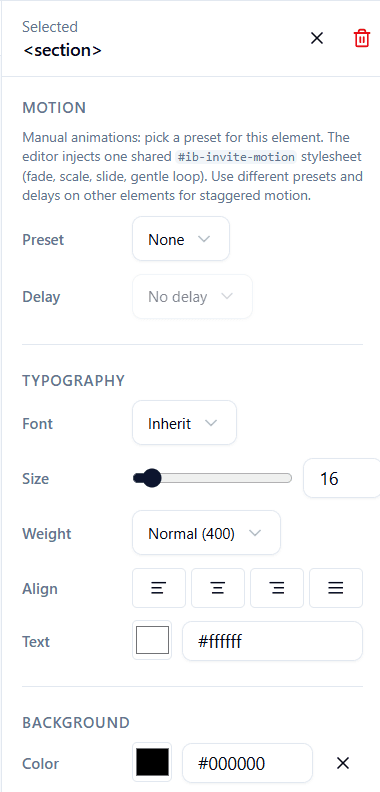
- Refine: click any block on the canvas to open Element settings — typography, colors, spacing, images, and Motion presets. Ask the AI for another pass if you want a different direction.
- Save & publish: use Save in the header, then Publish to get a public link and collect RSVPs on the live page.
Path 2 — Start from a template
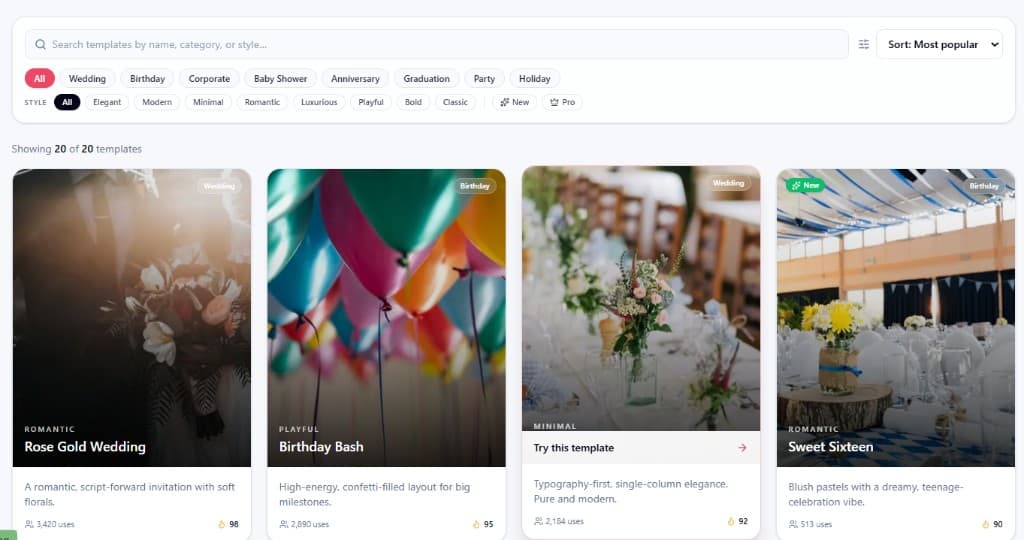
Templates are real projects seeded from the library. They are ideal when you like a layout and only need to swap copy, photos, or small style tweaks.
- Open the public Templates page and filter by category or style.
- Click Try this template. If you are not signed in, you will be redirected to sign-in; after login you return and a new draft project is created from that template's HTML.
- Edit in the same playground as AI projects — palette, drag-and-drop, settings, and motion all apply.
- Signed-in customers can also browse templates inside Workspace → Templates.
Path 3 — Build manually (no AI first)
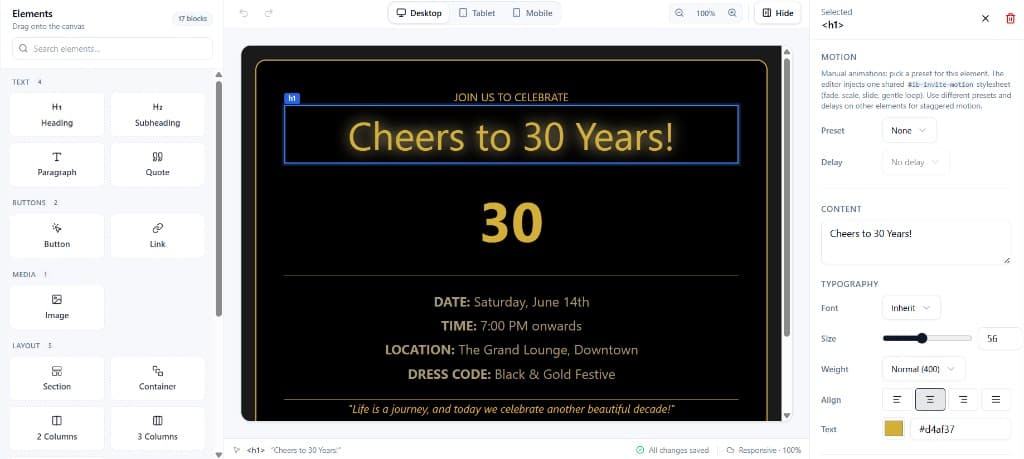
You can start from a blank canvas and assemble the invitation like a slide deck: add sections, text, images, and buttons from the element palette, then polish in the right-hand settings panel.
- Palette — drag blocks into the preview; reorder by dragging; select an element to edit.
- Element settings — fonts, colors, size, padding, links, and Motion presets (fade, slide, loop animations) with optional delay for staggered reveals.
- Devices & zoom — check tablet and mobile frames before you publish.
- You can still invoke AI later from the same project if you want help rewriting copy or refreshing the layout.
Mixing AI, templates, and manual edits
All three approaches use the same editor. Typical flows: AI first, then manual tweaks; or template first, then AI for a new hero section; or manual build, then AI for RSVP wording. Saves are always explicit — use the header Save control (and keyboard shortcut where enabled).
Publish, link, print, and RSVPs
After sign-in, the workspace dashboard is your home base: project counts, AI credits, sidebar navigation, and shortcuts like + New Invitation or the Design with AI prompt. Open any project to keep editing; when it is ready, Publish in the editor turns a draft into a shareable slug URL. Guests open it in a safe preview; form submissions post to your account's RSVP list. From the workspace you can open Guests & RSVPs per project, and use Print on the public page or in the editor when you need a paper copy.
Checklist before you send
- Proofread dates, venue, and contact lines on all breakpoints.
- Test the RSVP form once while signed out (incognito).
- Confirm the public slug is easy to share verbally if needed.
- Save a final revision after any last-minute edits.